Vitent now offers two agentic creation surfaces. Agent mode on the home page is designed for people who want a finished marketing, brand, educational, or personal video without managing a full production workspace. The workbench Agent on the right side of a Drama project helps creators control scripts, assets, storyboards, and production nodes in detail.
The following nine methods cover both paths. The screenshots come from the live English product and two completed test projects recorded on September 10, 2026.
1. Describe the finished video in Agent mode
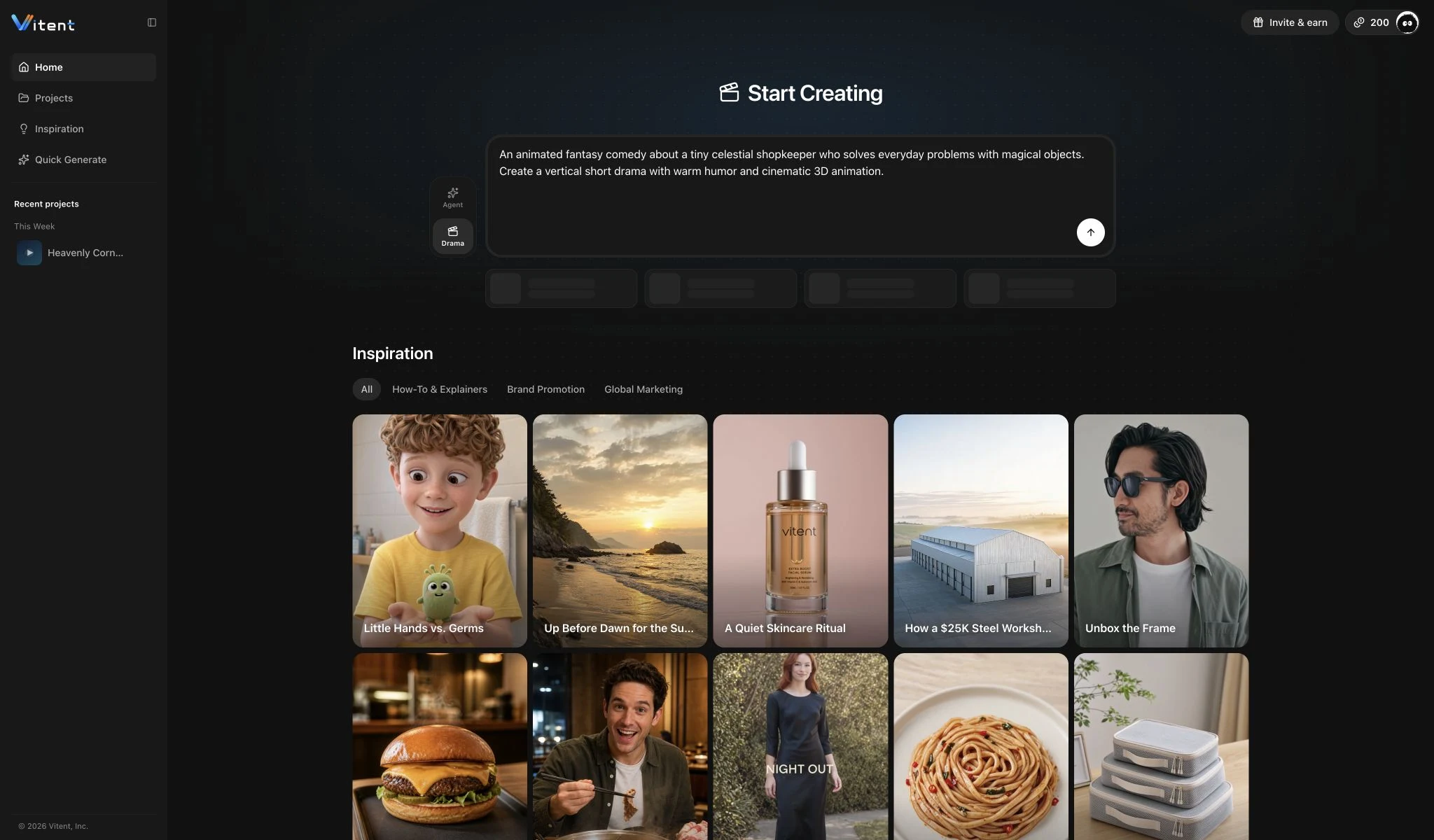
Choose Agent on the Start Creating page and describe the outcome, style, duration, audience, or marketing objective. The Agent turns that goal into a project and asks only for the missing decisions.
Create a short product video with a clean premium look, a clear product demonstration, and a final packshot.
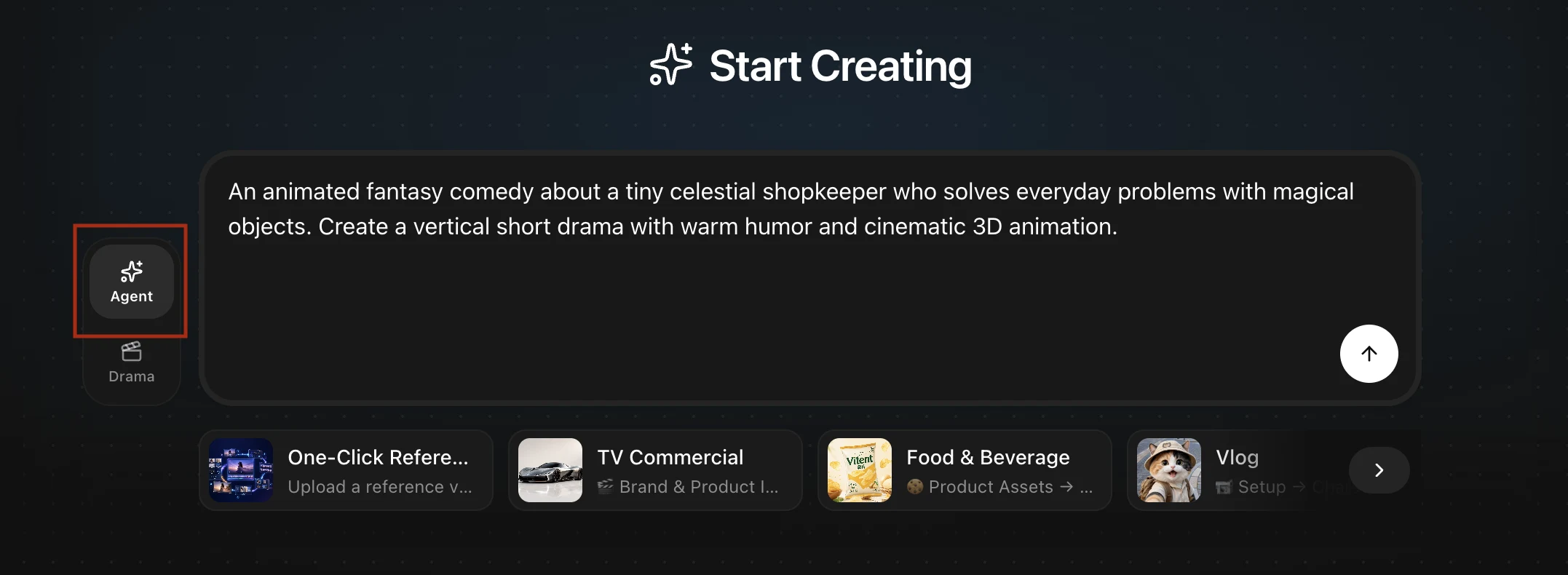
2. Start with a creation template
Templates turn a broad objective into a guided sequence of inputs and approvals. Current choices include One-Click Reference Video Remake, TV Commercial, Food & Beverage, Vlog, educational videos, local business reviews, game promos, special-occasion stories, fashion, and beauty.
Use a template when you know the content type and want the Agent to collect the right product, audience, runtime, and style information in order.

3. Remix a proven Inspiration structure
Open an Inspiration case, review its visual direction, and select Remix. The Agent can reuse the production structure while asking for replacement product, character, location, or brand assets.
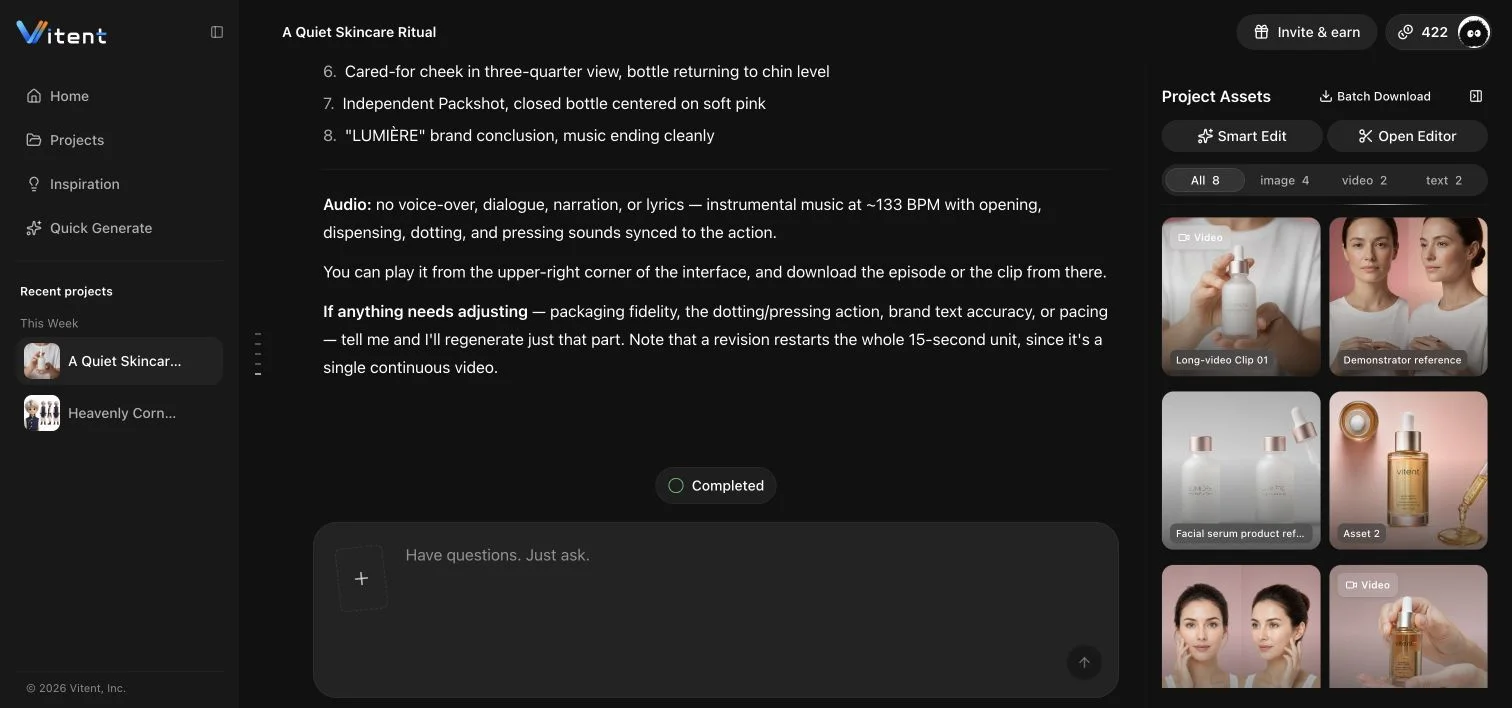
In the tested workflow, A Quiet Skincare Ritual supplied a 15-second, 16:9 skincare-video structure. The Agent did not treat the example product as the user's product.
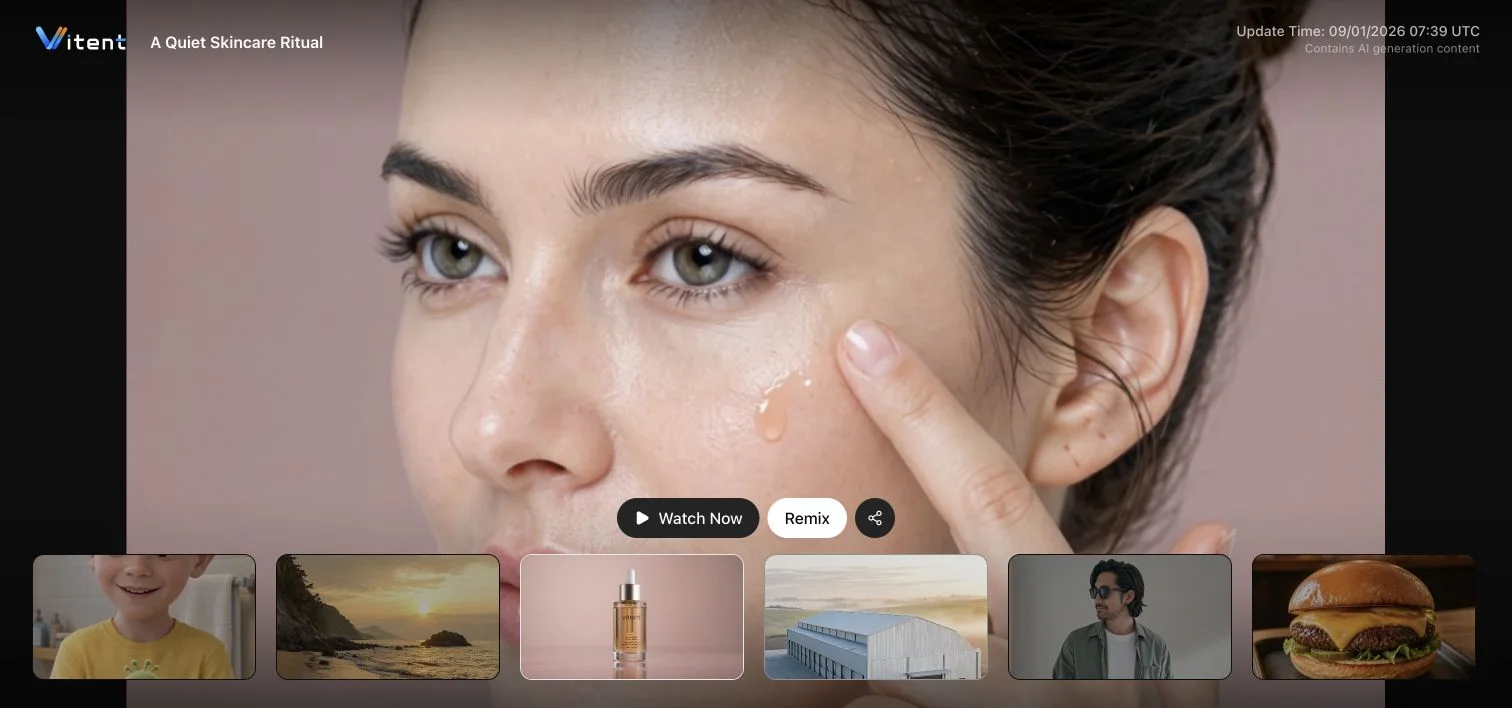
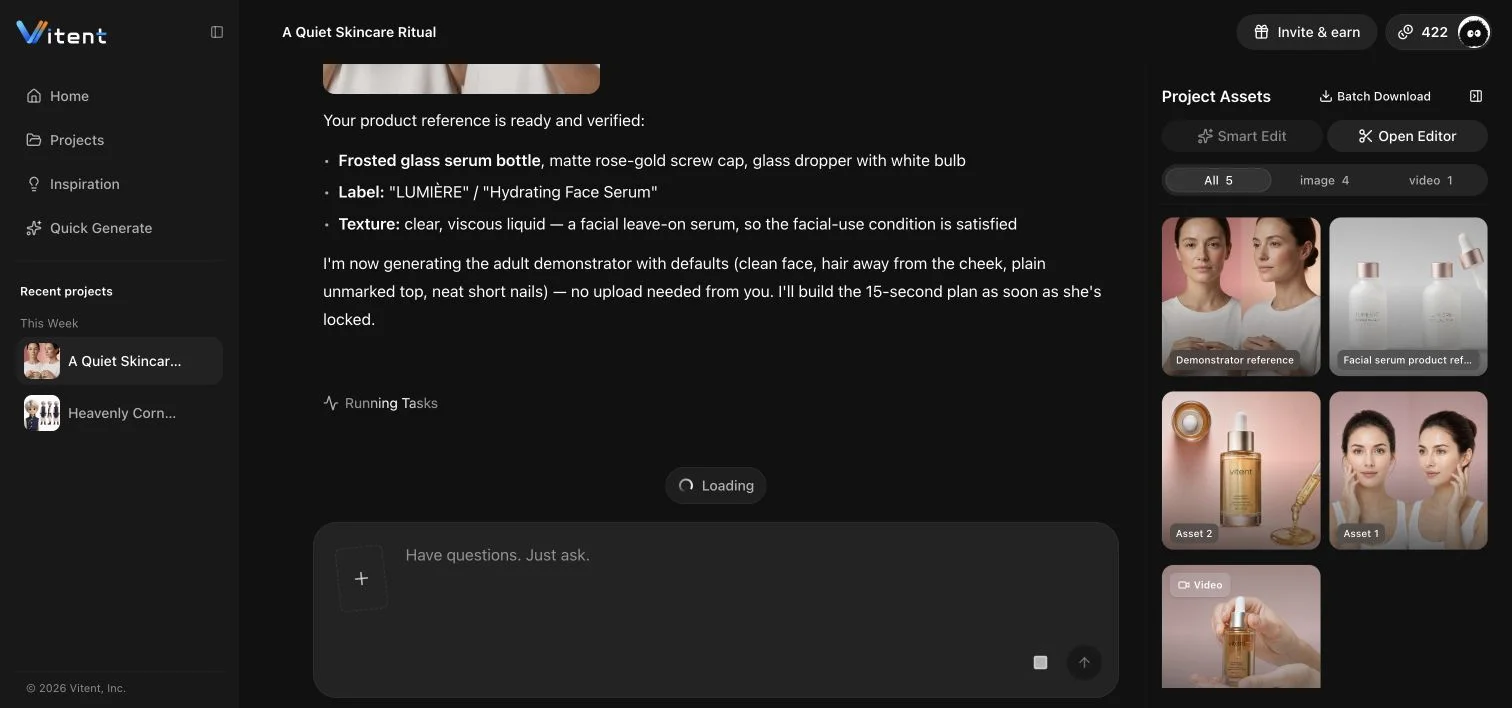
4. Generate missing replacement assets
If you do not yet have every required visual, choose Generate for Me and approve each asset before it is created. Review the prompt, model, aspect ratio, quality, quantity, and live credit estimate.
The skincare test generated a fictional LUMIÈRE serum reference and an adult demonstrator reference. They are demonstration assets, not claims about a real product or brand.
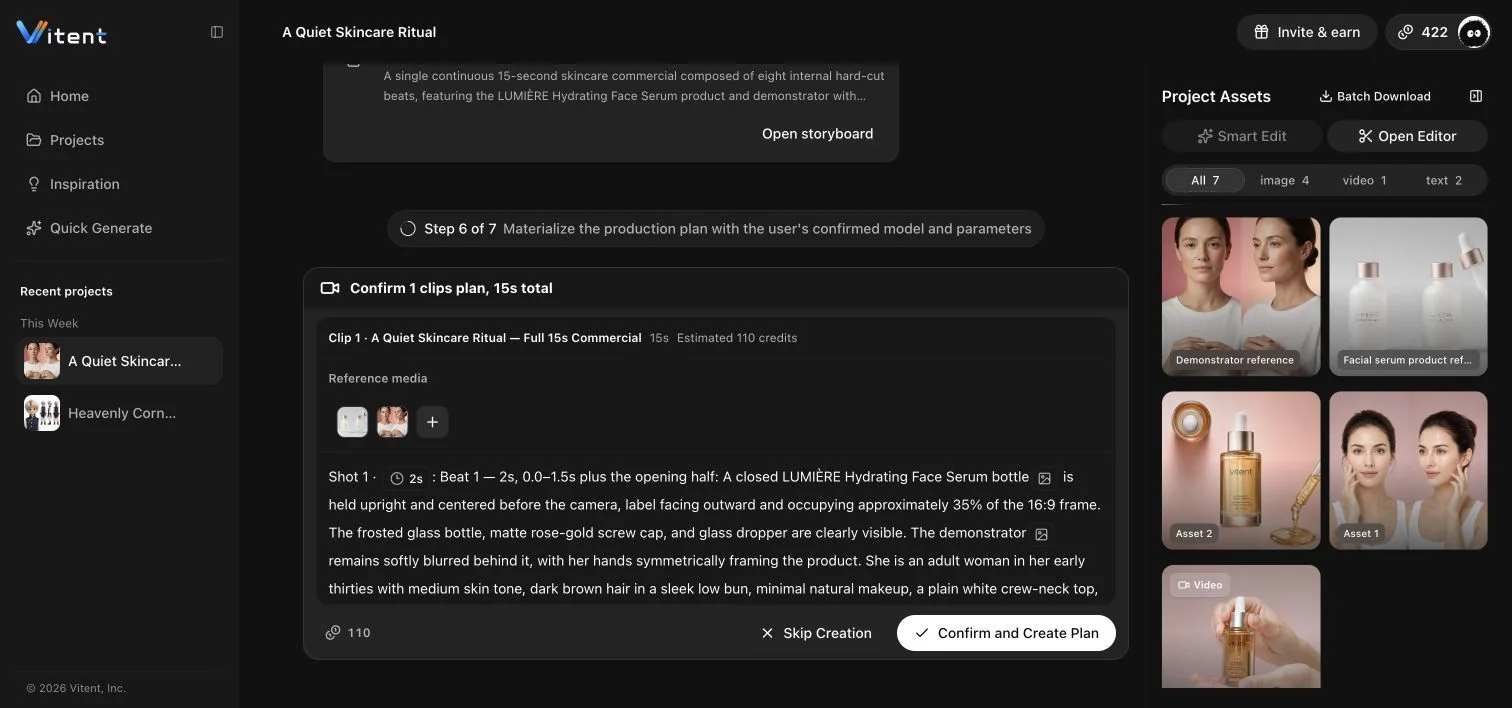
5. Approve the video plan before generation
The Agent prepares the script, storyboard prompts, model, runtime, aspect ratio, resolution, audio setting, and credit estimate as a reviewable plan. Confirm the plan only after the structure and replacement assets are correct.
The tested Remix produced one continuous 15-second, 16:9, 720p video with eight internal beats. The completed result included product opening, application, radiance, packshot, and brand ending.
6. Start a structured Drama project
Choose Drama when you need direct control over episodes, scripts, reusable assets, storyboards, and Production. A Drama project also includes a workbench Agent on the right, but that assistant is part of the project workspace rather than the top-level Agent mode.
7. Extract and generate reusable assets
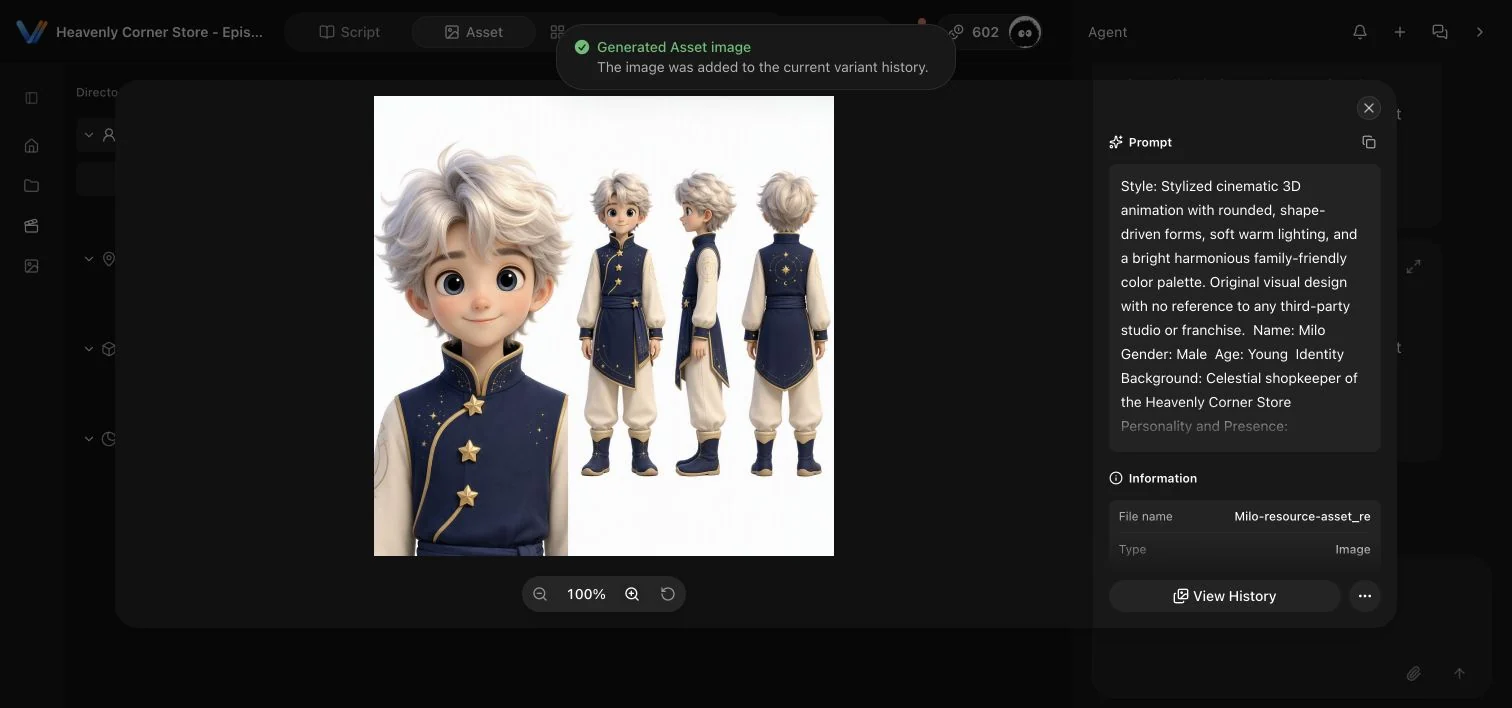
After saving a screenplay, ask the workbench Agent to extract its characters, locations, and props. Review the asset list first, then use original, brand-neutral prompts to generate the references needed for later shots.
The tested Heavenly Corner Store episode extracted Milo, Nim, the store, and an empty Silver Lantern, then generated one English-reviewed reference image for each.



8. Turn the screenplay into a storyboard
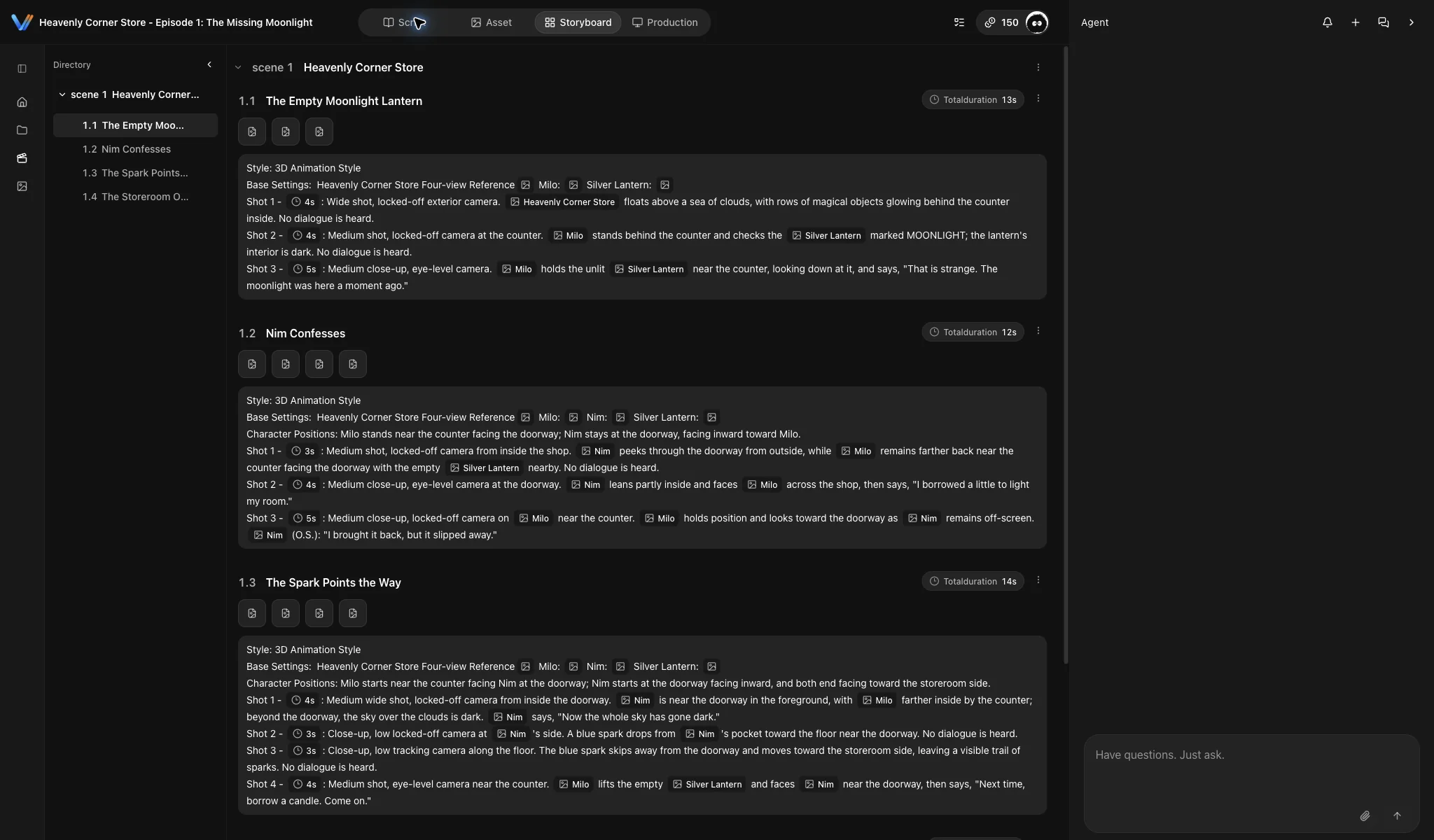
Ask the workbench Agent to break the saved script into scenes, clips, and shots, then verify timing, action order, dialogue, and linked assets. The audited episode contains one scene and four clips with durations of 13, 12, 14, and 8 seconds.
9. Import, preflight, and generate a Production clip
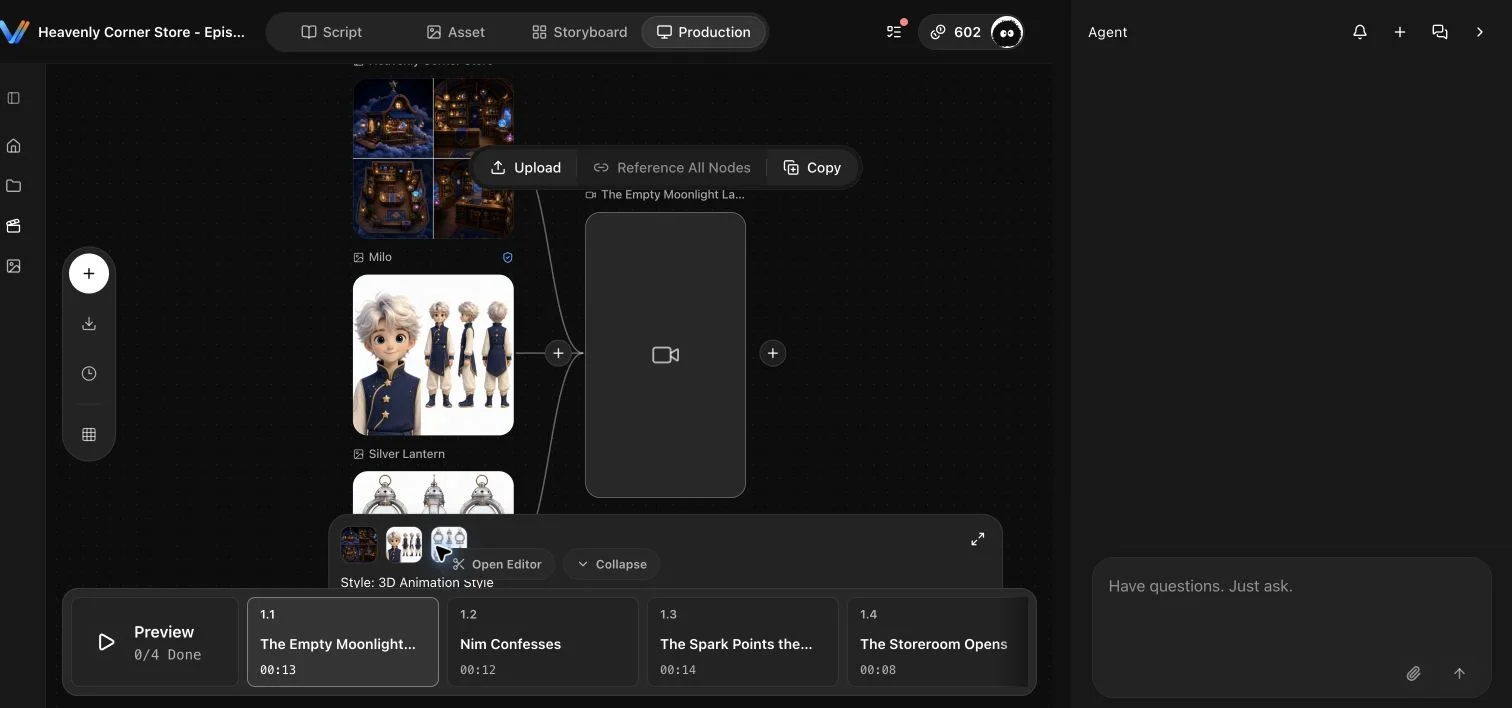
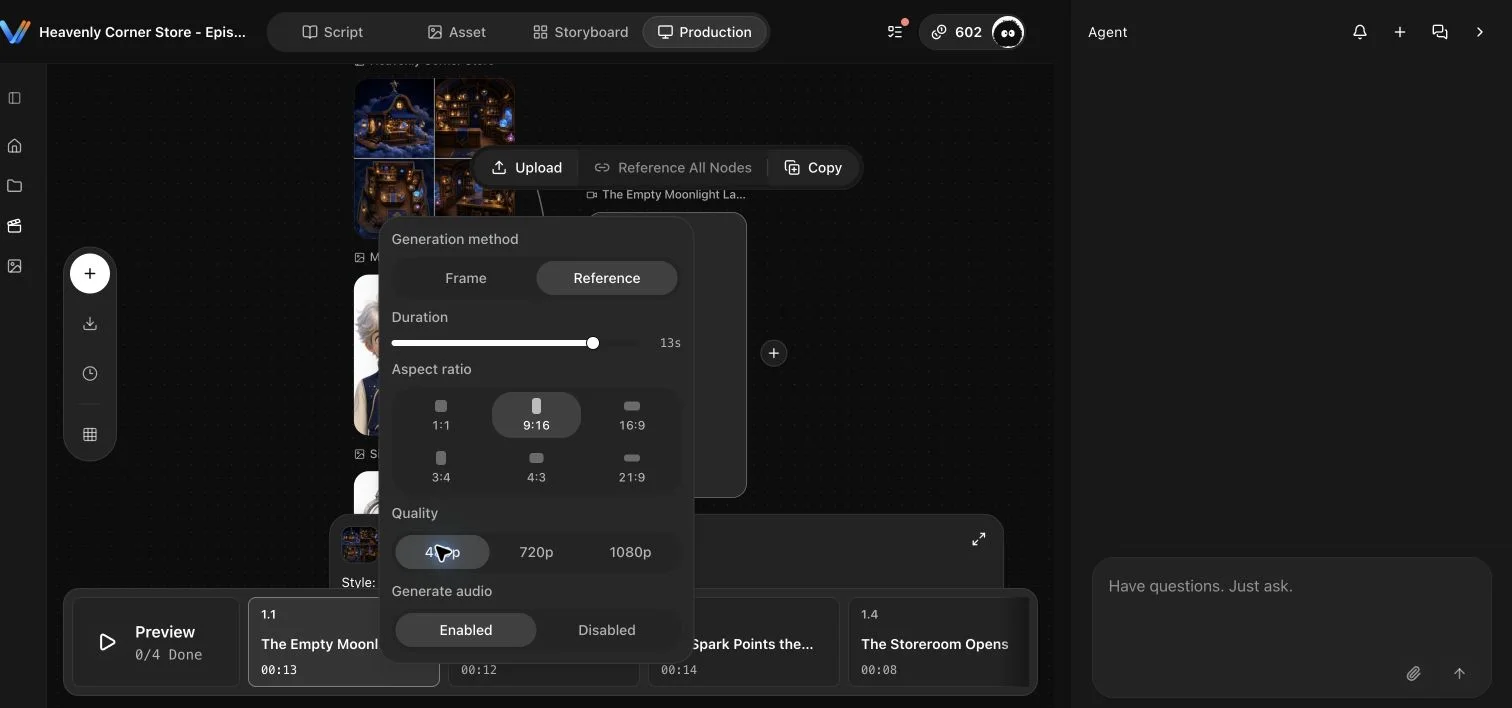
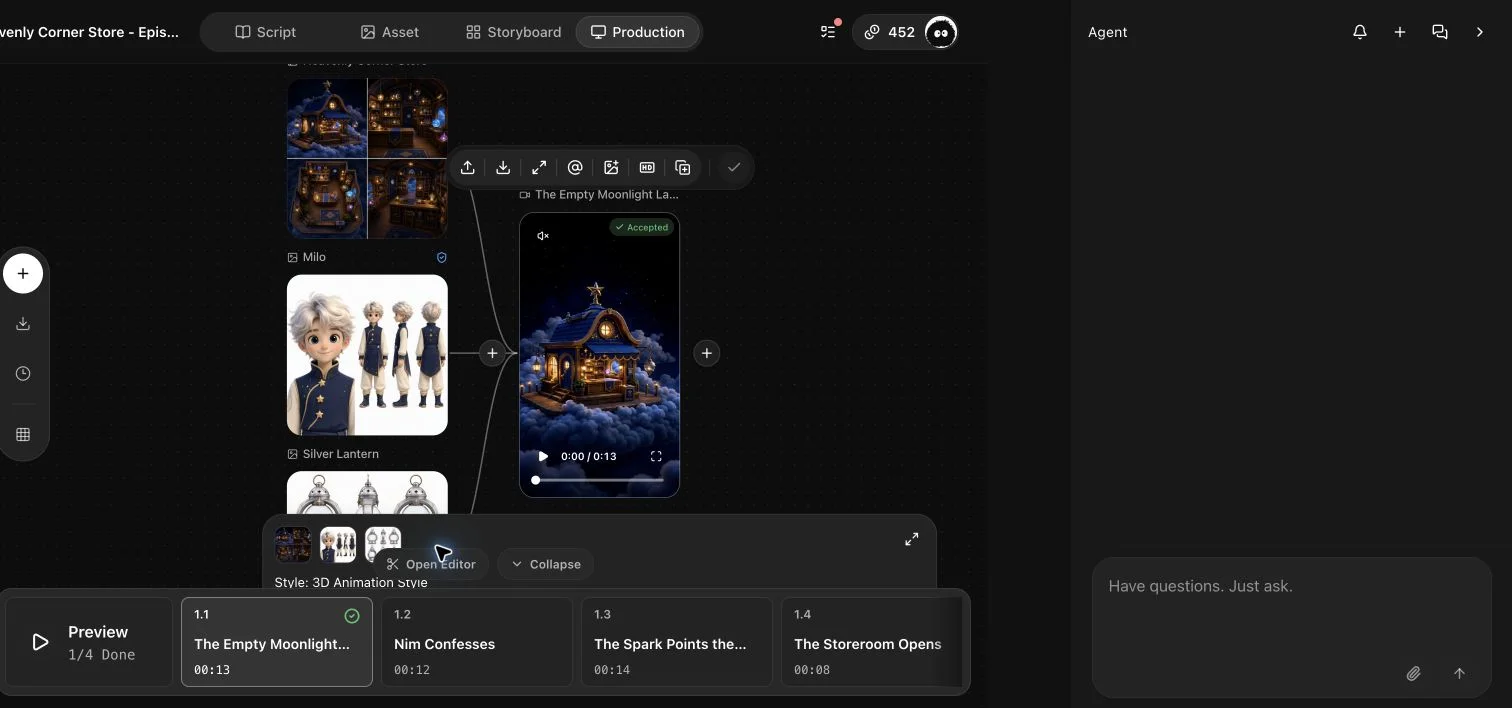
Use Import All to bring the current storyboard prompt and linked references into Production. Check the references, shot durations, aspect ratio, resolution, audio setting, and live credit estimate before submission.
For the first Heavenly Corner Store clip, three reference nodes and the 4 + 4 + 5 second shot structure were imported. A 13-second, 9:16, 480p preview was generated and accepted. It validates the end-to-end path for one of the four clips; it does not establish full-episode consistency.
Quick-reference starting points
| Goal | Best starting point |
|---|---|
| Create a complete marketing or personal video with guidance | Agent mode: describe the outcome or choose a template |
| Adapt the structure of an example | Agent mode: open an Inspiration case and select Remix |
| Build a multi-episode or highly controlled production | Drama mode: create the project, save the screenplay, and use the workbench Agent |
| Keep characters, locations, and props reusable | Drama mode: extract assets and generate reviewed reference images |
| Generate a specific storyboard clip | Production: Import All, verify the references and settings, then generate a preview |
Try Vitent:https://app.vitent.ai/